Vivo Y12S // FRP Bypass // Andriod 11 // Google Account UnLock // Without PC // New Method 2024 this Problem is Solved By Team KMT in English.
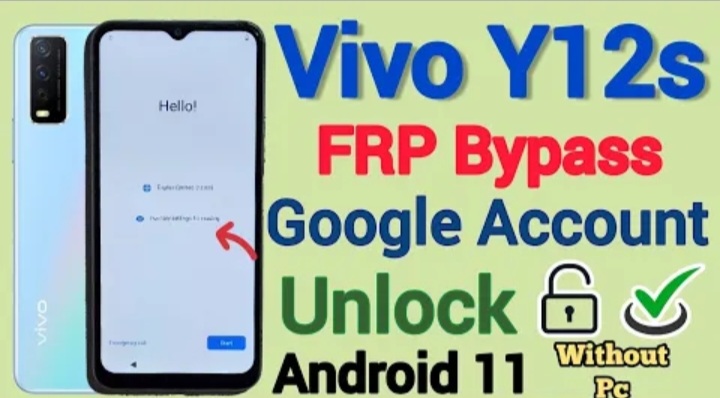
Welcome to Krish Mobile Training Institute.This is My Vivo Andriod SmartPhone Unfortunately i forgot My Phone Password i forgot my Phone Lock Screen Password which is why i can’t use this Phone.If you have forgotten the Password of your Phone then my BLOG.Today on http://VIVO Y12S FRP BYPASS NEW METHOD. Use it to Unlock the Phone.So,let’s Start the BLOG on How to Unlock the Phone by Hard Reset.If you forgot the Password Now,i will Show you How to Unlock this Model Smartphone.
DISCLAIMER :-

This is Tutorial BLOG for Educational Purpose only,try this Method only to Unlock your own Phone.Don’t try this Method on Stolen Phones.This is Serious Crime,if you are trying to unlock a stolen Phone you may also be Jailed.
Step 1:
- Hello ! _ Click on Start.
- Select Your Location _ Click on Next.
- Agreement & Terms _ Click on Agree.
- Connect to Wi-fi _ Click on Connect.
- Getting Your Phone Ready.
- Copy Apps & Data _ Click on Don’t copy.
- Just a sec.
- Checking Info.
- Verify Pattern.
- Click on Use my Google Account Instead.
- Checking Info.
- Google Verify Your Account _ E-mail or Phone.
- Click on < ( 5 times ).
- Hello ! _ Click on Start Talk Back.
- Press Volume + & Volume – Key together.
- Click on Turn on Talk Back.
- Click on Turn on.
- Globel Context Menu _ Read From Next Menu.
- Talk Back Settings _ Double Tap on Braille Keyboard.
- Double Tap on SetUp Braille Keyboard.

Step 2:
- Click on Settings.
- Enable Talk Back Braille Keyboard (Double Tap ).
- Double Tap on How to Use Braille Keyboard.
- Close Talk Back : Press Volume + & Volume – Key together.
- Click on < (3 times).
- Hello ! _ Click on Start.
- Select Your Location _ Click on Next.
- Agreement & Terms _ Click on Agree.
- Getting Your Phone Ready.
- Copy Apps & Data _ Click on Don’t Copy.
- Connect to Wi-fi Networks.
- Click on Add New Network.
- Select Space Key & Hold.
- Click on Talk Back Braille Keyboard.
- Click on Turn on in Accessibility Settings.
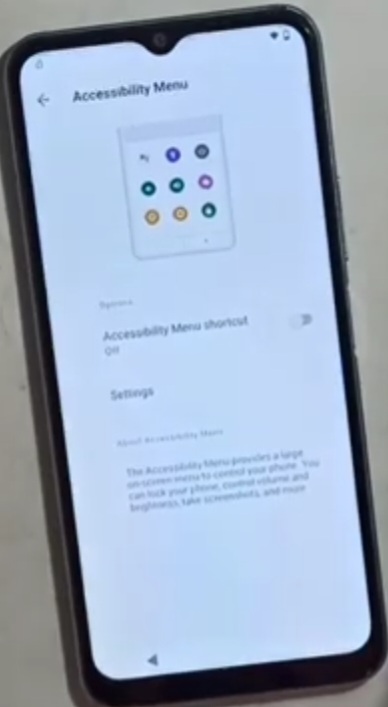
- Enable Accessibility Menu Shortcut.
- Click on Allow.
- Click on Got it.
- Click on Accessibility Menu.
- Click on Assistant.
Krish Mobile Training Institute
Step 3:
- Try to Say Anything.
- Click on Next Keyboard.
- Search Open Youtube.
- Click on Agree.
- Vivo Browser Logo is Displayed.
- Search VNROM.
- Click on Bypass Google Account 2024.
- Loading.
- Click on Open Settings.
- Click on Allow.
- Click on About Phone.
- Click on <.
- Click on System.
- Click on Reset Options.
- Click on Reset All Settings.
- Again Click on Reset All Settings.
- Restoring.
- Vivo Logo is Displayed.
- Again On Restored Vivo Logo is Displayed.
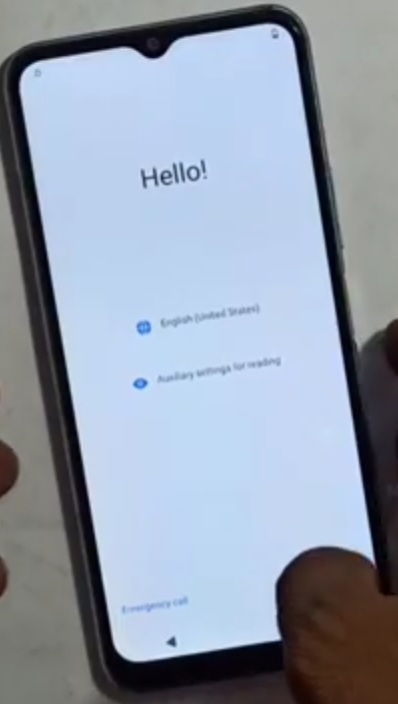
- Hello ! _ Click on Start.
Step 4:
- Just a Sec.
- Click on Next.
- Click on Agree.
- Connect to Wi-fi.
- (Reconnect to Wi-fi Network).
- Click on Connect.
- Getting Your Phone Ready.
- Click on < (4 times).
- Click on Start.
- Talk Back (Press Volume + & Volume – Key together.
- Click on Turn on.
- Click on Talk Back Tutorial (L).
- Globel Context Menu _ Double Tap On Talk Back Settings.
- Click on Braille Keyboard.
- Click on SetUp Braille Keyboard.
- Double Tap On Settings.
- Enable Talk Back Braille Keyboard.
- Click on Ok.
- Click on Braille Keyboard Double Tap On How to Use Braille Keyboard.
- Close Talk Back : Press Volume + & Volume – Key together.


Step 5:
- Click on < (3 times).
- Click on Start.
- Click on Next.
- Click on Agree.
- Getting Your Phone Ready…….
- Click on <.
- Connect to Wi-fi.
- Click on See all Wi-fi Networks.
- Click on Add New Network.
- Select Space Key & Hold.
- Click on Talk Back Braille Keyboard.
- Click on Turn on in Accessibility Settings.
- Click on Accessibility Menu.
- Enable Accessibility Menu Shortcut.
- Click on Allow.
- Click on Got it.
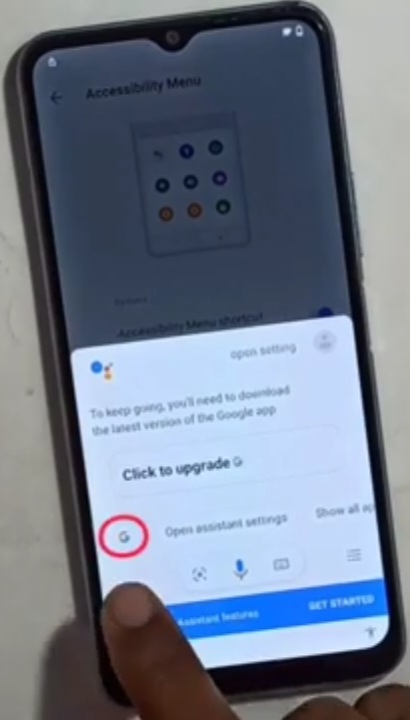
- Click on Accessibility Menu.
- Click on Assistant.
- Try to Say Something.
- Click on Next Keyboard.
Step 6:
- Open Youtube.
- Click on Send.
- Click on <.
- Click on MIC.
- Say Open Setting.
- Tap on Google Search _ Click on <.
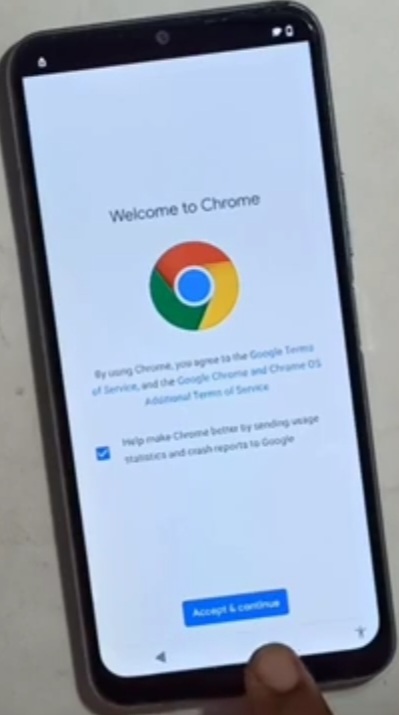
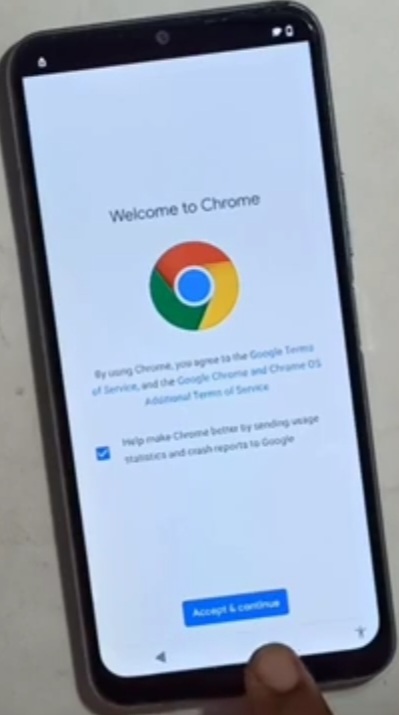
- Search Chrome Logo is Displayed.
- Click on Accept & Continue.
- Click on No,thanks.
- Search VNROM.
- Click on Bypass Google Account 2024.
- Click on Open Screen Smart Lock.
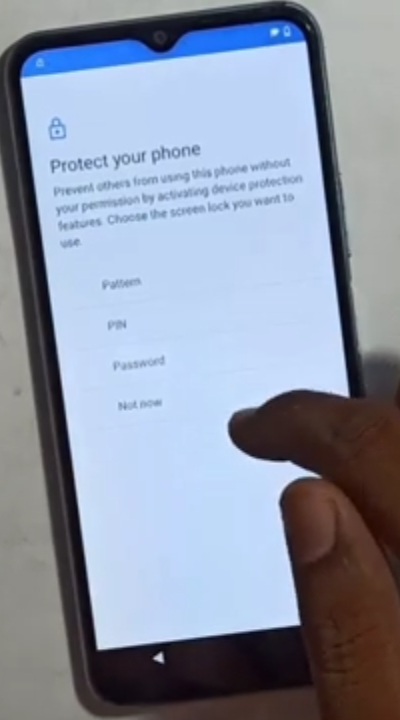
- Protect Your Phone.
- Click on PIN.
- Set Screen Lock _ Set New PIN Lock.
- Click on Next.
- Re – Enter your PIN.
- Click on Confirm.
- Keep Your Device UnLocked While its on You (Yes,Im IN).
- All Set _ Click on Got it.
- Click on < (13 times).
Step 7:
- Hello ! _ Click on Start.
- Select Your Location _ Click on Next.
- Agreement & Terms _ Click on Agree.
- Getting Your Phone Ready…….
- Copy Apps & Data _ Click on Don’t Copy.
- Just a Sec.
- Checking Info.
- Verify Your PIN.
- Enter New PIN Lock _ Click on Done.
- Checking Info.
- Click on Sign in.
- Click on skip.
- Again Click on Skip.
- Just a Sec.
- Google Services _ Click on More & Accept (2 times).
- Click on Next.
- Review Additional Apps _ Click on Ok.
- Getting Your Phone Ready…..
- Recommended Services _ Click on Next.
- Import Data _ Click on Skip _ From Vivo _ Again Click on Skip.
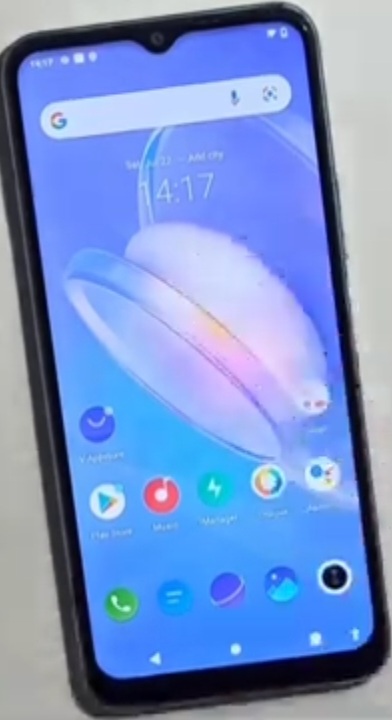
- Congratulations _ Click on Use Now _ Click on Agree _ Loading.
FOR MORE INFORMATION :-
Stay tuned by Subscribing to our KMT Youtube Channel for Tutorial Apps and Tricks to Unlock More new SmartPhones like this,http://www.youtube.com/@krishmobiletraininginstitute.
