Xiaomi Redmi 12C FRP Bypass/HyperOS 1.0.3 Android 14 HyperOS Without PC Remove Google Lock 2024 Problem Solved by Team KMT in English
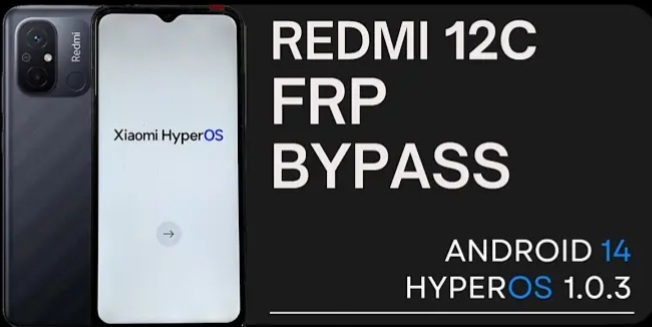

This is Redmi 12C Mobile.The Customer Brought This Mobile to Our Institute.The Technician saked the Customer What is the Problem with the Mobile.The Customer said that Whenevr i took my mobile then accidentally i forget my mobile lock due to Some reasons sir.Somehow i tried all the PIN Numbers that i remember but it didn’t Work for me sir What can i do or I brought the mobile to our Institute sir.The Technician Said He will Check the Mobile and Repair it.
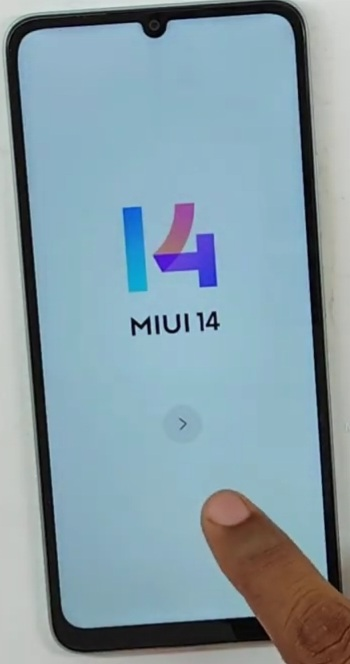
Today we will learn How to do Xiaomi HyperOS 1.0.3 Redmi 12C FRP Bypass Android 14 without PC.In this BLOG Step by step Very easy & Simple Tricks.To Unlock Some Mobiles we do software Applications Automatically But,other than that Let’s learn how to Unlock Using Only Lock Button Without Using any Tools & Mechines.A Customer asked us to make a Redmi12C Mobile to our Institute.The Condition Of the Mobile When it came to us was as Follows.
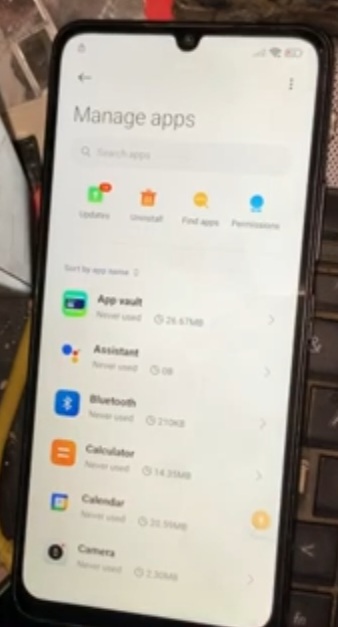
Step 1: Insert SIM – Enter PIN Number – Swipe down – Click on Settings – Click on About Phone – Click on Backward Button ( < ) – Search Space ( Cancel ) – Click on Settings – Click on additional settings – Click on Accessibility Menu – The service will perform these actions – Click on Allow – Click Accessability Menu – Click on Backward Button ( < ) – Again Click on Backward Button – Again Click on Backward Button ( < ) – Click on Apps – Manage Apps – Click on Backward Button ( < ) – Click on Manage apps – Click on Find Apps – Secure free official Click on skip – Again Click on Skip – Install Activity Launcher.
Krish Mobile Training Institute
- Step 2: Click on Backward button ( < ) – Again click on Backward Button ( < ) – Again click on Backward Button ( < ) – Again click on Backward Button ( < ) – Again click on Backward Button ( < ) – Again click on Backward Button ( < ) – Click on GOOGLE – Click on Help – Search Help – How do I delete my Google Account ( Search ) – Click on 3 Dot ICON at Top Corner.
- Step 3: Click on ShareMe – Click on Shareme – Click on Agree – Click on Next – Click on While Using this App – Can Modify System Settings – Click on allow Modifying System Settings – Click on Backward Button (< ).
- Step 4: Click on While using this app – Click on Next Click on Backward Button ( < ) – Click on App Info – Click on Allow – Click on Next – Click on Allow – Click on Setting to System – Scan QR Code to Connect –
Shareme – Transfer a files – Click on ( X ) – Click on Emergency Down Arrow in Green Colour – Click on Backward Button ( < ) – Click on En Attentive do connection ( SCAN ) – Connect to device – Click on Connect – Connecting to device –
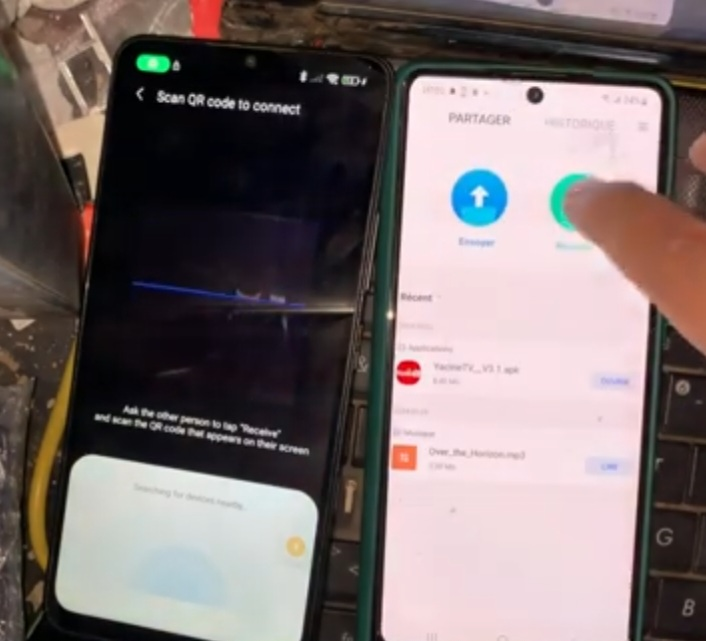
- Step 5: High Speed transfer ( 1st Device ) – Transfer a Grand Version – ( 2nd Device ) – Click on Transfer do Shareme – Press or hold Power or Lock Button – Click on Shareme – Click on Transfer do Shareme – Selection do elements at Below Line Click on 5th Option – Aggressive Preferences.
- Step 6: Install Activity Launcher – Click on OK – Search second Scroll the Screen – You are all set ! – Click on Ok – Click on MiUi 14 ( touch ) – Google Sign into Make the Google Assistant Your’s Sign in – Click on Backward Button ( < ) – Click on Cancel – Click on Coud’t Sign in – Click on Backward Button ( < ) – Eject the SIM Card – Enter PIN Number – Swipe down Click on settings.
- Step 7: Click on Google – Click on Help – How do i delete my Google Account – Click on 3 dots Icon – Click on Shareme – High speed Transfer – Search Second – Click on Second space – Creating Second Space – Switching – Press or Hold Power Button or Lock button – Swipe up ( on Power button ) –
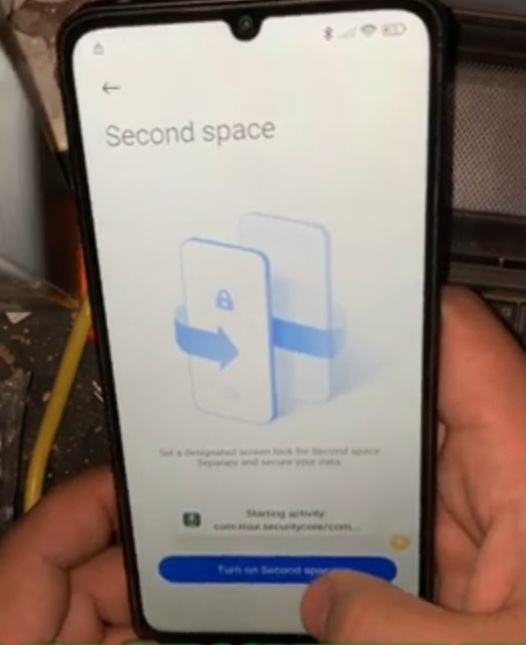
Swipe down – Click on Settings – Click on google – ( ?) -at top – Click on Help – Clear help History – Click on Send – Click on Feedback – or Help – Click on 3 dots icon at the top side.
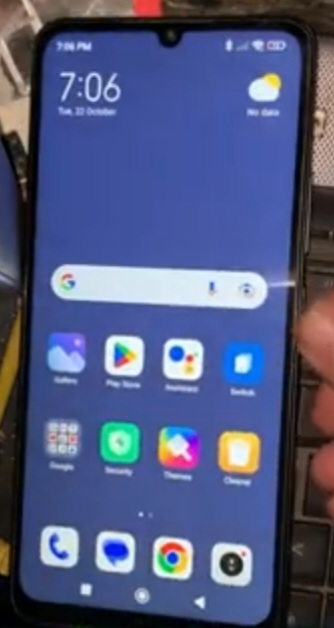
- Step 8: Click on Share Article – Choose Bluetooth Device – Click on Backward Buton ( < ) – Again Click on Backward Button ( < ) – How do I delete my Google Account ? – Click on 3 dots Icon – Click on Share Article – Press or Hold Lock or Power Button – Swipe down – Now Mobile is Power on – Enter PIN – Swipe down – Click on Setings – Click on Google ( ? ) – Click on Help – How do I delete my Google Account – Click on 3 dots Icon – Click on Share Article – Scan QR Code to Connect – Shareme -Transfer a Grand Version – Click on ( x ) – Click on Scan – Connect – Click on Share More Files – Click on Share more files – Install Activity Launcher – Search Second Space – Go to second Space – Switiching – Created Sucessfully – Switch Between Space – Set password .
If you want to see more videoes then click on our youtube Channel Link, www.youtube.com/@krishmobiletraininginstitute