Vivo Verify PIN Solution 100% Working Method // 2022 Update // Vivo Y12S FRP Bypass Tutorial this Problem is Solved by Team KMT in English.

Step 1:
Welcome to Krish Mobile Training Institute.If we Forgot the Password of the SmartPhone Most of the time we can Open the Password Lock through a Hard Reset Hello ! – Click on Start – Select Your Location – Click on Next – Agreement & Terms – Click on Agree _ But Most of the time after Unlocking with a Hard Reset you Have to Connect the Wi-fi – and Set Up the Phone but Then it is Not Possible to Unlock the Phone Without Knowing the Previous Password _ Click on Connect or G-mail ID but,
DISCLAIMER :-

This is Tutorial BLOG for Educational Purpose only,try this Method only to Unlock your own Phone.Don’t try this Method on Stolen Phones.This is Serious Crime,if you are trying to unlock a stolen Phone you may also be Jailed.
Step 2:
Today I will Show you How to Unlock the Phone Completely by Passing the Google Account Verification System if you Know the Previous Password or G-mail ID _ But today I will Show You How to Unlock the Phone Completely by passing the Google Account Verification System if you Know the – Getting Your Phone Ready ………. – Previous Password or G-mail ID this is My Vivo Y12 ( Copy Apps & Data ) – Click on Don’t Copy – Model SmartPhone.
Step 3:
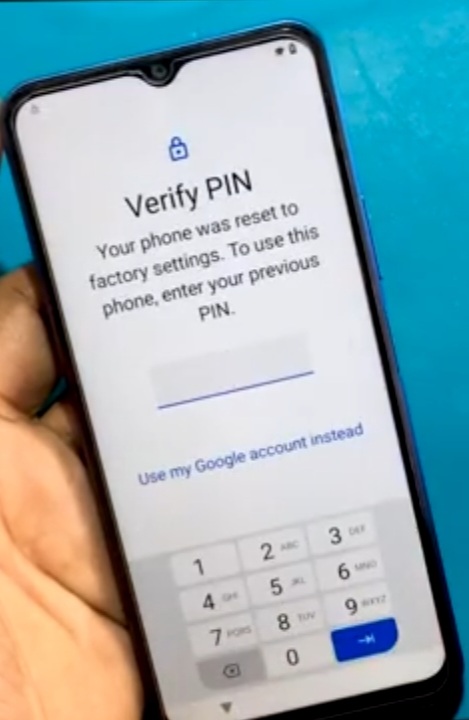
After Giving a Hard Reset now they Want to Confirm ( Checking Info ) – Verify PIN or Sign in Previous G-mail ID Login _ Click on Use My Google Account Instead – Checking Info – Verify your Account this Device ( E-mail or Phone ) Was Reset to Continue – Sign in With Google Accounts that was Privately Sensed In this Device i Will now Show Youhow you Can FRP Unlock Your SmartPhone By Bypassing the Lock here i can See that The Voice Keyboard is not Working i will now you Select a new Network to Connect to Wi-fi and Connect there the Voice Keyboard Option Will Work,

Krish Mobile Training Institute
Step 4:
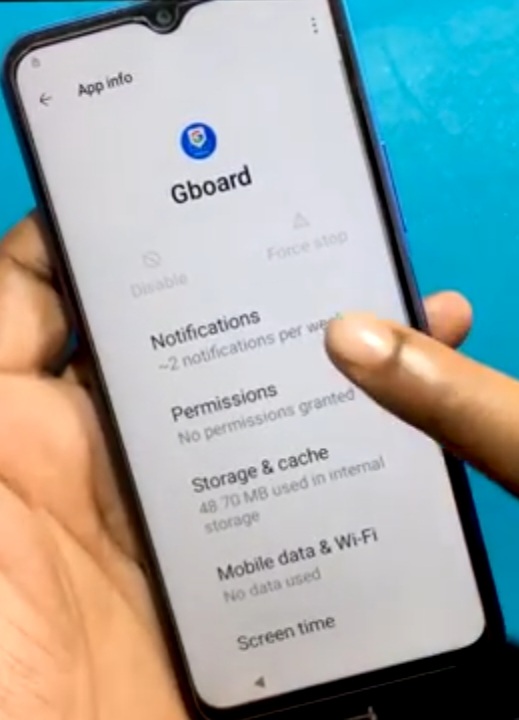
Click on < ( 4 times ) – Connect to Wi-fi – Click on Add Network – Click on Save – Here i can See the Voice Keyboard is Working – Click on While Using this App – Google Keyboard Wants to Voice Record – Permission But i Won’t Do it – Click on Deny – Again Click on Deny – https://krishmobiletech.com/wp-admin/post.php?post=8982&action=edit#:~:text=Focus%20Keyphrase-,HOW%20TO%20UNLOCK%20VIVO%20Y12S%20FRP,-56/100 Click on G-Board Needs Micro Phone Access to enable Voice Typing – Click on Save – Click on Permission – Select App Info – Click on G-Board – Click on Permissions – Click the Search Icon & PIN Lock Lock Device when Un Pinning – Click on App Pinning – Enable on – When App is Pinned – Lock Device when Unpinning.( This Method is not Working ).
Step 5:
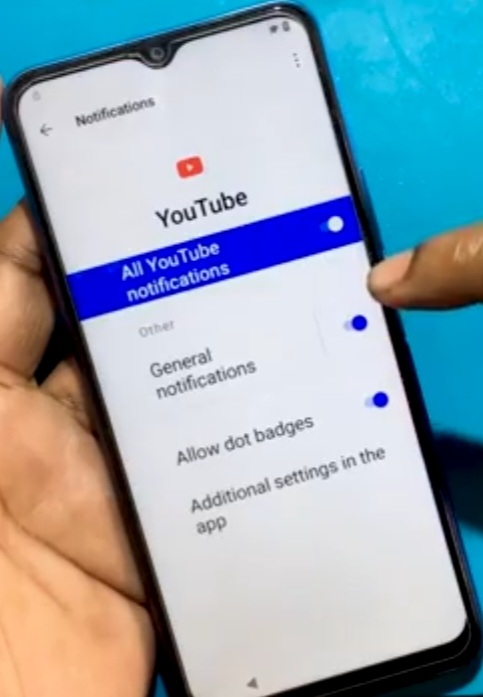
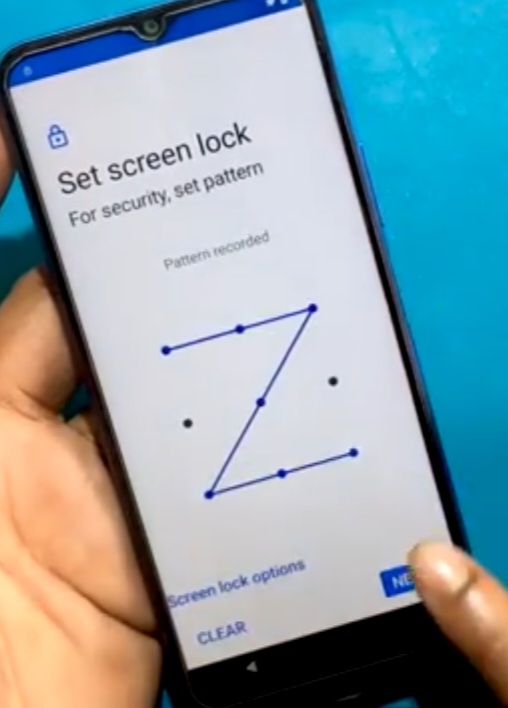
Click on < – Search Google Play Services – Click on < – Search Youtube – Click on Notifications – Click on Additional Settings in the App – Click on About – Click on Youtube Terms & Services – Click on Chrome – Click on Accept & Continue – Turn on Sync – Click on No,thanks – Terms of Services – Search KMT Website – Click on KMT – Scroll Down & Up & also Click on Menu – Click on FRP Remove Apps – Open Set Lock Screen – Protect Your Phone – Click on Pattern – Click on Set Screen Lock – Click on Next – Protect Your Phone – Click on Not Now – Click on Skip Anyway – Click on Quick Shortcut Maker 2.4.0 // Link Backup.

Step 6:
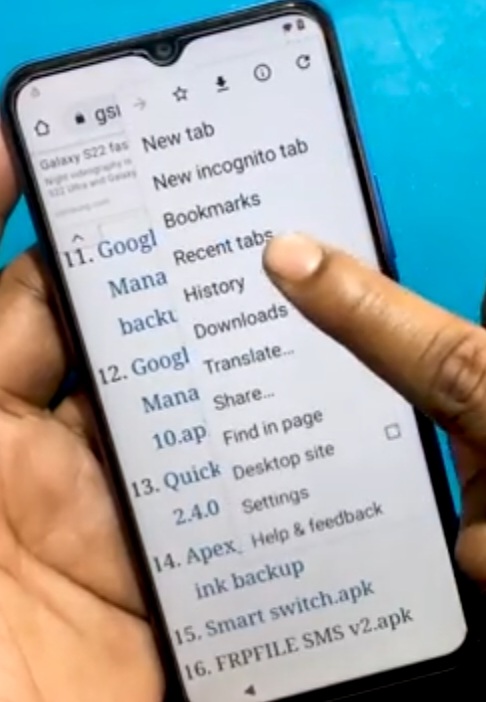
Again Now let’s See if Quick Shortcut Maker Apps can Be Installed download Quick Shortcut Maker – Click on My Files – ( Quick ShortCut Maker ) – Click on < – Click on 3 Dot Icon – Click on Downloads – Click on Quick Shortcut Maker – Click on Unknown – Click on Cancel – Click on Chrome – ( Settings ) – Click on Cancel – Click on Chrome – Allow from this Source – ( Enable ) – Install Shortcut Maker – But Quick Shortcut Maker Apps are not Being Installed – Click on 3 Dot Icon – Click on Downloads – Now we will see how the Final Method works Hopefully it will Work i have Installed the Quick Shortcut Maker App and Easy Share App on My Samsung J2 Mobile.
Step 7:
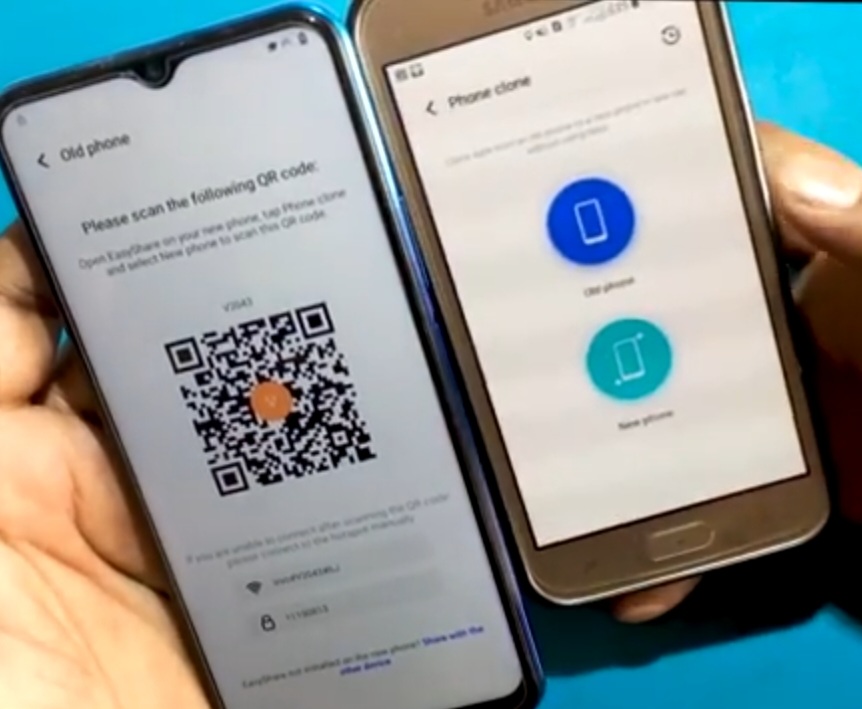
Click on Open Settings App – Click on About Phone – Click on < – Click on System – Click on Phone Clone – i Will Open the Clone Phone – Click on Disagree – Privacy Terms – Click on Agree – Click on Phone Clone – 2.D Click on Start – Click on Easy Share – ( Now I am Taking Quick ShortCut Maker Apps From my Old Phone through Clone Apps to Vivo Phone ( Old Device ) – 1.D Click on New Phone – Click on Andriod – Click on Introductions – Click on Ok – Click on While Using this App – Scan the QR Code on Your Old Phone – Click on Old Phone – Please Scan the Following QR Code – Turn on Hotspot.
Step 8:
So, Please Scan the Folowing – Click on Connecting – 2.D Connected Successfully – Click on Ok Got it – Click on Allow – Again Click on Allow – Again Click on Allow – Click on Applications – Select Quick ShortCut Maker – Click on Ok – Click on Applications – Click on Ok – Click on Short Phone Clone – Verify Identity – Draw the Current Pattern – 1.D Click on Ok – Click on Applications – Click on Apps Received – Click on < – Click on New Phone – Phone Clone Complete – Start Using Your new Phone – Go Back to GBoard – Search youtube.
Step 9:
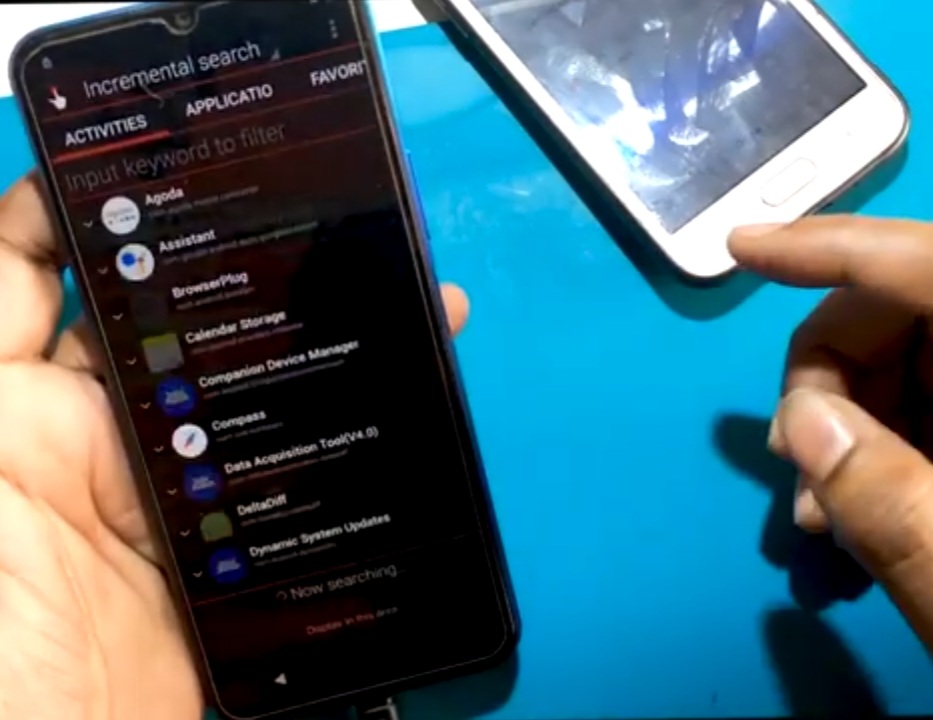
Click on Notifications – Click on Additional Settings in the Skip – Click on About – Click on Youtube Terms of Services – Click on Always – Click on Terms of Service – Open Google ( Quick.com…….. ) – Click on No, thanks – Search Open Quick ShortCut Maker – Click on Activities – ( Search Factory Reset ) – Click on Factory Test – Click on < – Click on Select Factory Test & Emergency Test – Click on Try – Click on Engineering Mode – Click on Engineering Test – Click on Back to Home ( Initialize to English ) – Loading – Now Phone Lock Unlocks Successfully.

FOR MORE INFORMATION :-
Stay Tuned By subscribing to Our KMT Favor Youtube Channel for Tutorial Tips & Tricks to UnLock More New SmartPhones Like this, http://www.youtube.com/@krishmobiletraininginstitute.