Vivo Y20 FRP Bypass New 2023 Method / UnLock Password FRP Without PC this Problem is Solved by Team KMT in English……….
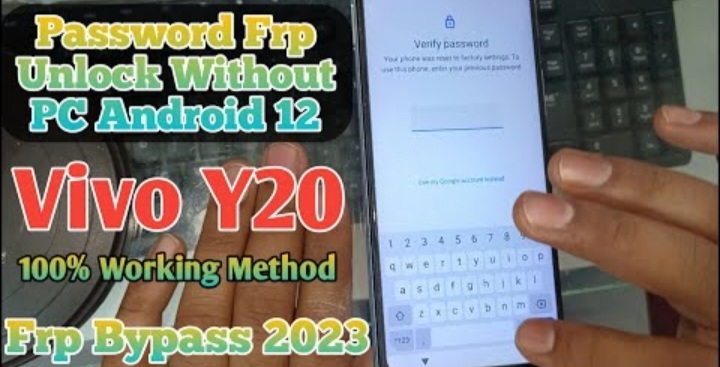
Welcome to Krish Mobile Training Institute.This is My Vivo Andriod SmartPhone Unfortunately i forgot My Phone Password i forgot my Phone Lock Screen Password which is why i can’t use this Phone.If you have forgotten the Password of your http://HOW TO UNLOCK PASSWORD FRP WITHOUT PC Phone then my BLOG.Today on .Use it to Unlock the Phone.So,let’s Start the BLOG on How to Unlock the Phone by Hard Reset.If you forgot the Password Now,i will Show you How to Unlock this Model Smartphone.
DISCLAIMER :-
This is Tutorial BLOG for Educational Purpose only,try this Method only to Unlock your own Phone.Don’t try this Method on Stolen Phones.This is Serious Crime,if you are trying to unlock a stolen Phone you may also be Jailed.
Step 1:-

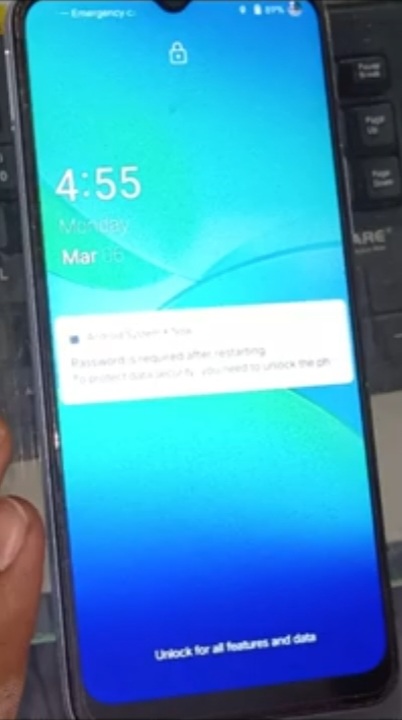
- Switch on the Mobile ( Using Lock & Volume Up Buttons ) _ Swipe Up _ UnLock Password _
- Give Your Password _ Press / Hold Lock Button _ Click on Power Off Your Device _
- Vivo Logo is Displayed _ Vivo FastBoot _ Click on Recovery Mode ( Using Volume Down Button ) _
- Vivo Logo is Displayed _ Vivo Recovery _ Click on Clear Data _ Click on Clear All Data _ Click on Ok _
- Vivo ( Clearing Data.Do Not Operate the Choice ) _ Click on Return _ Click on < _ Click on Restart _
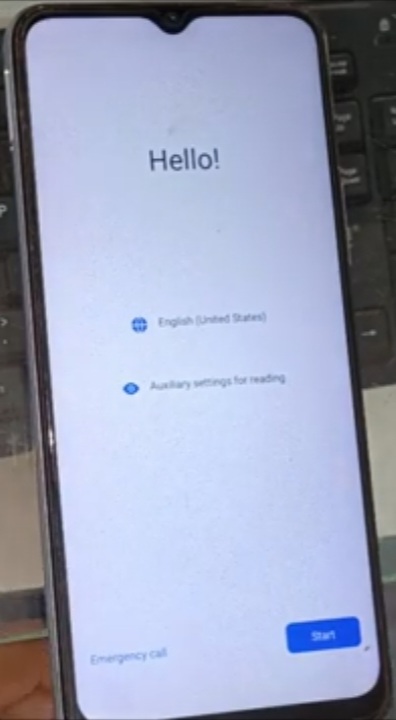
- Click on Ok _ Vivo Logo is Displayed _ Hello! _ Click on Start _ Just a Sec _ Select Your Language _
- Click on Next _ Agreement & Terms ( Give a Small Click ) _ Click on Next _ Connect to Wi-fi _
- Give Password _ Click on Connect _ Getting Your Phone Ready _ Copy Apps & Data _
- Click on Don’t Copy _ Just a Sec _ Checking info _ Verify Password _
- Go Back to Home Screen Up to Hello! _
- Press / Hold Both Volume Up & Volume Down Buttons at the Same Time _
- Turn on TalkBack _ Click on Turn on _
- Again Hold / Press Both Volume Up & Volume Down Buttons at the Same Time _
Step 2:-
Krish Mobile Training Institute
- TalkBack Tutorial _ Click on < _ Again Click on < _ Hello! _ Click on Start _ Select Your Location _
- Click on Next _ Agreement & Terms _ Click on Agree _ Getting Your Phone Ready _
- Copy Apps & Data _ Click on Don’t Copy _ Checking Info _ Click on < ( 3 times ) _
- Connect to Wi-fi _ Set All Wi-fi Connections _ Click on Add New Network _ Click on MIC _
- Click on Don’t Allow _ Again Click on MIC _ Click on Don’t Allow _ App Info _
- G-Board Logo is Displayed _ Click on Notifications _ Click on 3 Dot Icon _
- Click on Help & FeedBack _ AI G-Board Notification _ Click on < _ Click on 3 Dot Icon _
- Click on Help & FeedBack _ Click on Permissions _ Click on Youtube _ Click on Notifications _
- Click on Additional Settings in the App _ Click on History & Privacy _
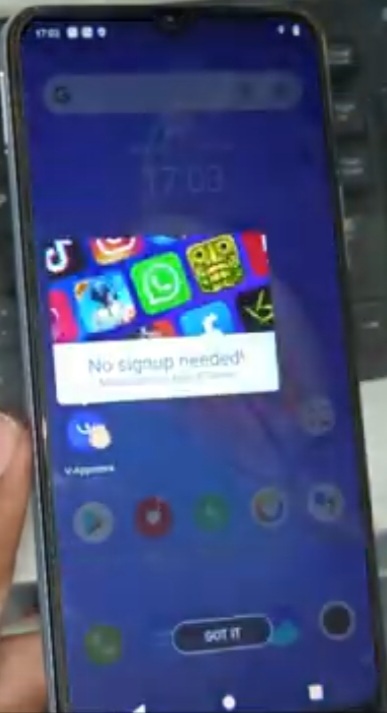
- Click on Youtube Terms of Service _ Welcome to Vivo Browser _ Click on Agree _
- Vivo Browser Logo is Displayed _ Click on Terms of Service _ Search addROM _
- Click on Open Settings _ Click on Allow _ Click on Agree _ Install Activity Manager _
- Click on Factory Test _ Click on Engineer Mode _
- Click on Initialize to English …… _ Click on Agree _ Loading…….
FOR MORE INFORMATION :-
Stay tuned by Subscribing to our KMT Youtube Channel for Tutorial Apps and Tricks to Unlock More new SmartPhones like this,http://www.youtube.com/@krishmobiletraininginstitute.