New Security 2024 :- Vivo Y17s,Y27s,Y36 FRP Bypass / Google Account Bypass Andriod 13 Without PC this Problem is Solved By Team KMT in English……..
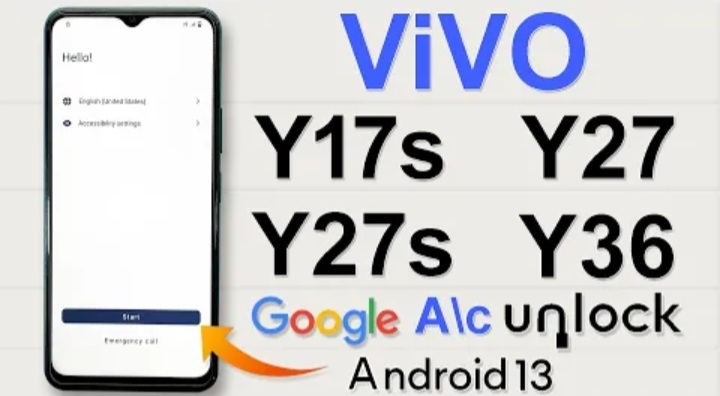
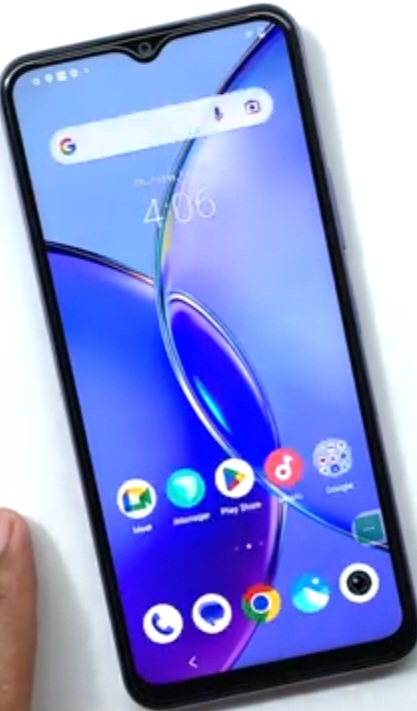
Welcome to Krish Mobile Training Institute.This is My Vivo Andriod SmartPhone Unfortunately i forgot My Phone Password i forgot my Phone Lock Screen Password which is why i can’t use this Phone.If you have forgotten the Password of your http://HOW TO FIX FORGOT LOCK SCREEN PASSWORD Phone then my BLOG.Today on .Use it to Unlock the Phone.So,let’s Start the BLOG on How to Unlock the Phone by Hard Reset.If you forgot the Password Now,i will Show you How to Unlock this Model Smartphone.
DISCLAIMER :-
This is Tutorial BLOG for Educational Purpose only,try this Method only to Unlock your own Phone.Don’t try this Method on Stolen Phones.This is Serious Crime,if you are trying to unlock a stolen Phone you may also be Jailed.
Step 1:-
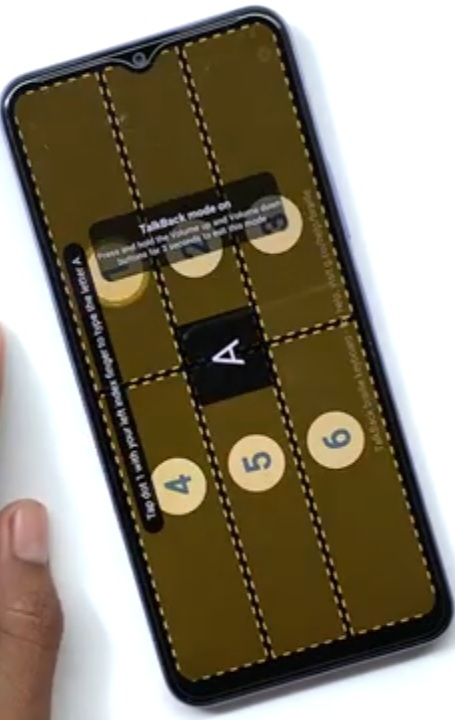
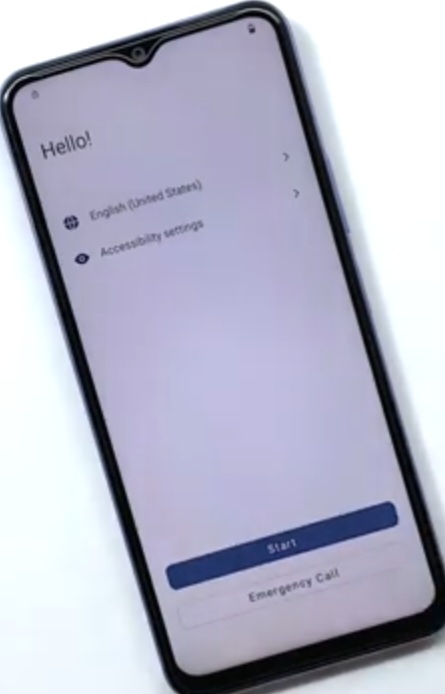
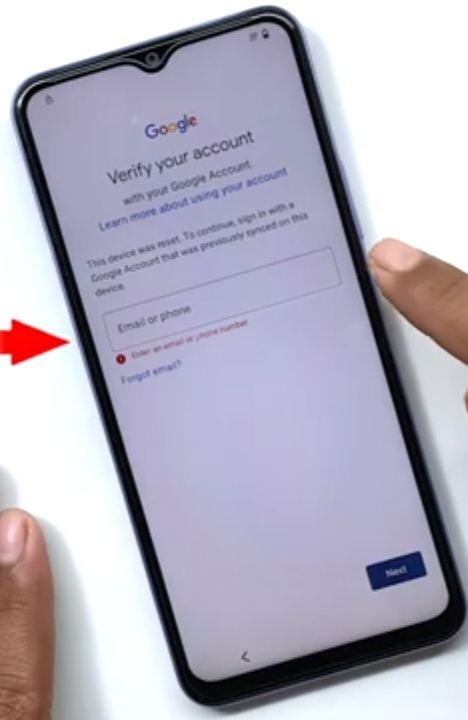
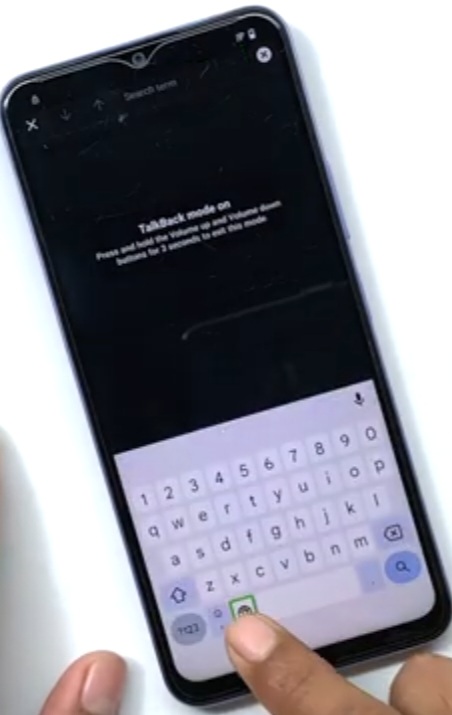
Hello! _ Click on Start – Click on Next – Again Click on Next – Connect to Wi-fi – Click on Connect – Getting Your Phone Ready – Just a Few Moments – Click on Don’t Copy – Checking Info – Click on Next – Go Back to the Home Screen – Hello! _ Click on Accessibility Settings – Click on Talk Back – Draw L Shape – TalkBack Menu – Screen Search – TalkBack Mode on – Click on Globe Symbol in Keyboard – Click on Next – Give a Double Tap anywhere to Continue – 1 – A _ 2 Lag with Fingers – 3 Fingers (Like Screen Shot) to Down – Again Lag with 3 fingers to tap Side.
Step 2:-
Click on Settings – Click on Braille KeyBoard – Click on < – TalkBack Settings – Using 2 Fingers & Select Braille Display – Volume Up & Volume Down TalkBack Off & Lock Button – Go to talkBack – Click on TalkBack – Click on Accessibility Menu – Click on Allow – Click on Got it – Click on 3 Dot Icon – Click on Assistant – Click on Next KeyBord – Type Open Settings – Click on About Phone – Click on Software Information – Click on < – Again Click on < – Click on System – Open Phone Clone – Easy Share Logo is Visualised – Click on Agree – Click on This Device is – Click on Andriod.
Step 3:-
Krish Mobile Training Institute
Click on Got it – Click on While Using this App – Again Click on While Using this App – click on Allow – Scan QR Code on the Old Device – Take Another Device – 2.D _ Click on Settings – Click on Network & Internet – Connect to Wi-Fi – Click on Connect – Click on < – Ahain Click on < – Click on Security – Click on Screen Lock – set Your Pattern – Draw Pattern – Click on Done – Click on Confirm – Click on Done – Go Back to the Home Screen – Click on Play Store – Install Activity Launcher & Easy Share – Open Easy Share – Click on Agree – Easy Share Logo is Displayed.
Step 4:-
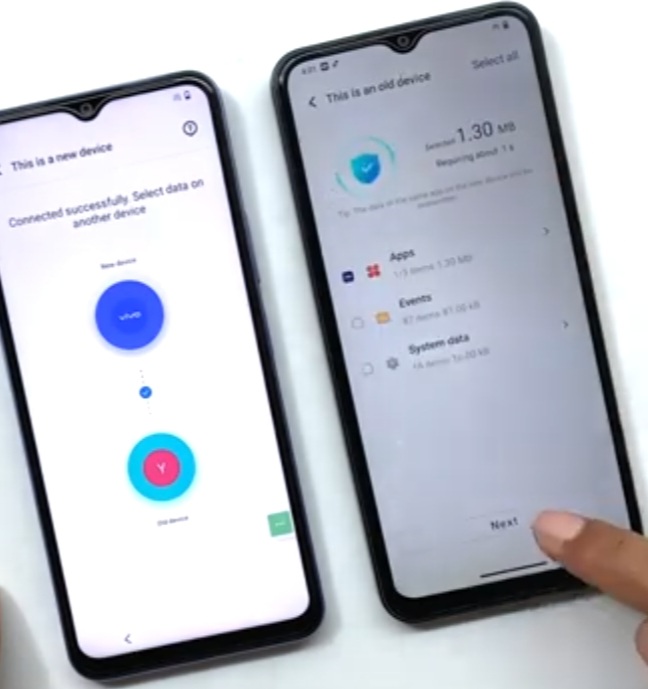
Click on Phone Clone – This is an Old Phone – Click on < – Click on While Using this App – Click on Allow – Connecting by Scanning QR Code – Click on Connecting – Click on Got it – Click on Allow – Disenable All Apps – Click on Ok – Click on Next – Select Activity launcher – Click on Next – Confirm Your Pattern – Click on Ok – 1.D _ Start Cloning – 2.D _ Click on Done – 1.D _ Cloning Completed – Click on Apps – Click on Run – Click on Open – Click on Ok – Loading – Click on Andriod SetUp – Finish V2310 SetUp – Click on Start – Connect to Mobile Network – Click on Skip – Getting Your Phone Ready.
Step 5:-

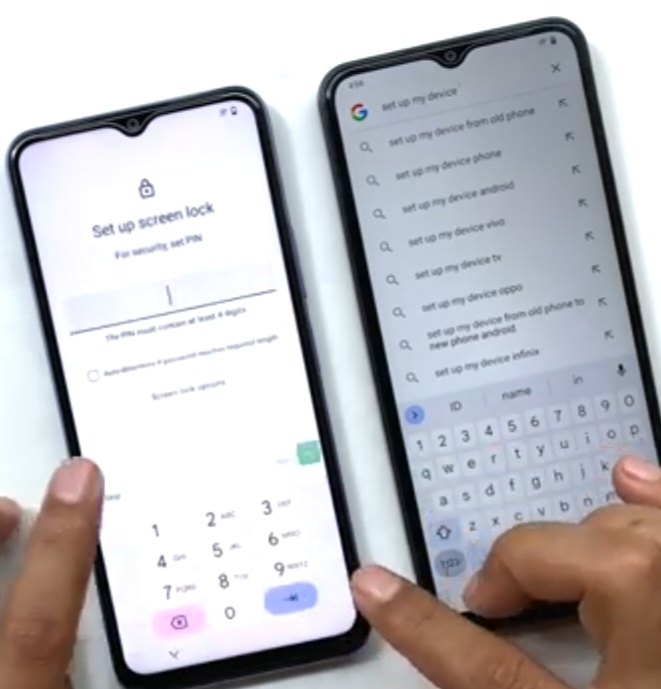
Just a Few Moments – Click on Next – Again Click on Next – Again Click on Next – Again Click on Next – Connect Both Devices – Can’t use Another Device – Click on Next – Checking Info – Open the Google App on Your Old Device – Click on Next – Again Click on Next – Verify Your Device – 2.D _ Click on Google – Type SetUp My Device – Click on Search – Click on Getting Started – Click on Next – Searching for Devices – Connecting – Verify the Shapes on Your New Device – Click on Next – Click on Copy – Confirm Your Pattern – Copying Your Account – 1.D _ Connecting to Your Another Device – 2.D _ Continue SetUp on your V2310 – 1.D _ Getting Ready to Copy – Click on Don’t Copy – Click on Coudn’t Copy – Click on Next – Getting Account Info – 2.D _ Search SetUp My Device.
Step 6:-
1.D _ Google Services – Click on Accept – Click on SetUp Screen Lock – Click on Skip – Checking – TakeOut Another Device – Click on Next – Click on More – Click on Agree – Click on Skip – Again Click on Skip – Click on Skip – Click on No,thanks – Getting Your Phone Ready – Click on Don’t Copy – Checking Info – Account Added – Click on Next – Getting Account Info – Click on More – Again Click on More – Click on Accept – Click on Skip – Click on Continue – Click on Skip – Click on No,thanks – Getting Your Phone Ready – Click on Next – Again Click on Next – Click on Get Started – Loading……..
FOR MORE INFORMATION :-
Stay tuned by Subscribing to our KMT Youtube Channel for Tutorial Apps and Tricks to Unlock More new SmartPhones like this,http://www.youtube.com/@krishmobiletraininginstitute.