All Vivo FRP UnLock Andriod 14 _ Vivo V29,V30,V40,Y100,Y19s,Y28 FRP Bypass/Google Account UnLock this Problem is Solved by team KMT in English……..
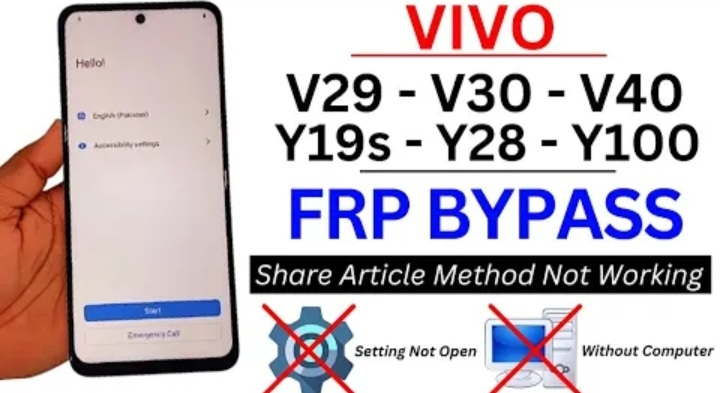
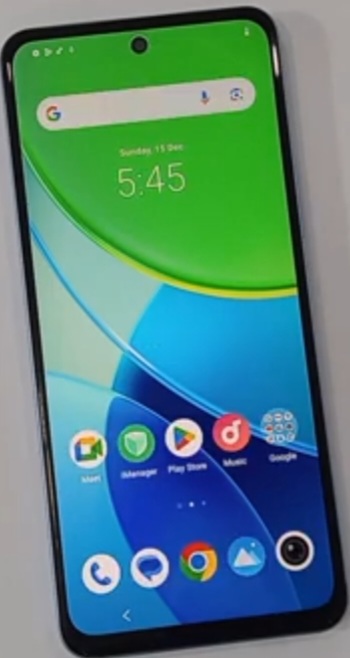
Welcome to Krish Mobile Training Institute.This is My Vivo Andriod SmartPhone Unfortunately i forgot My Phone Password i forgot my Phone Lock Screen Password which is why i can’t use this Phone.If you have forgotten the Password of your http://HOW TO UNLOCK PASSWORD FRP WITHOUT PC Phone then my BLOG.Today on Use it to Unlock the Phone.So,let’s Start the BLOG on How to Unlock the Phone by Hard Reset.If you forgot the Password Now,i will Show you How to Unlock this Model Smartphone.
DISCLAIMER :-
This is Tutorial BLOG for Educational Purpose only,try this Method only to Unlock your own Phone.Don’t try this Method on Stolen Phones.This is Serious Crime,if you are trying to unlock a stolen Phone you may also be Jailed.
Step 1:-
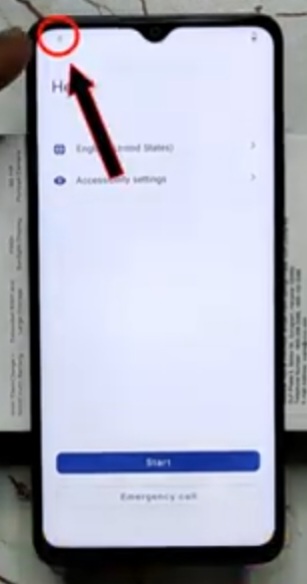
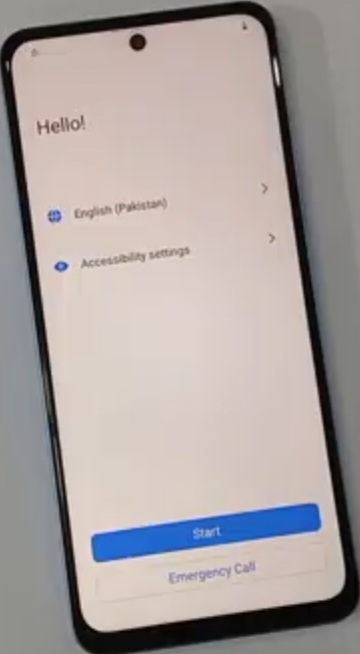
Hello! _ Click on Start – Click on Next – Again Click on Next – Click on Agree – Connect to Wi-fi – Click on Connect – Getting Your Phone Ready – Just a few Moments – Click on Don’t Copy – Checking Info (2 times) – Click on Use My Google Account Instead _ Give E-mail or Phone – Go Back to the Home Screen – Using < Backward Symbol – Click on Accessibility Settings – Click on Talk Back – Click on Allow – Talk Back Mode is On – Screen Search – Click on Globe Icon in KEYBOARD – Click on Allow – Click on While Using this App.
Step 2:-
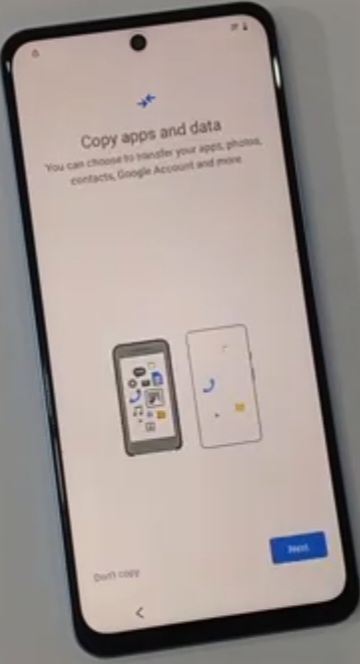
Screen Search – Click on Globe Icon – Click on Close – Click on Talk Back – Hold Again Both Volume Buttons – Search Web – Hold Again Both Volume Buttons – Click on Close – Click on Talk Back – Click on < (2times) – Click on Next – Again Click on Next – Click on Agree – Getting Your Phone Ready – Connect to Wi-fi – Turn on TalkBack to Use Braille KeyBoard – Click on Turn On – Click on Accessibility Menu – Click on Settings – Help & Feed Back – Search Help – Click on Next KeyBoard – Search Youtube.
Step 3:-
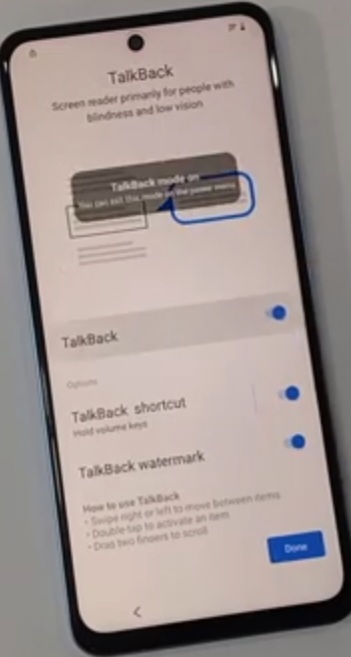
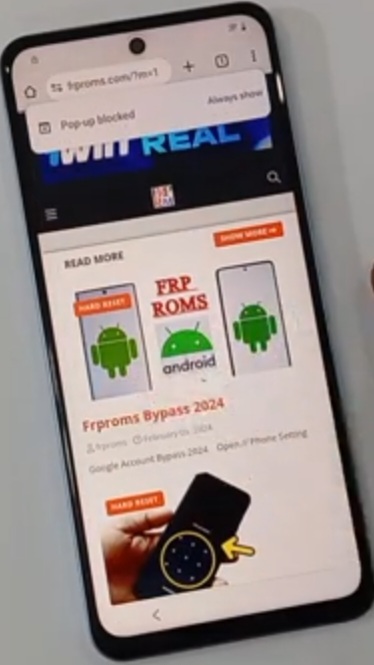
Controle Your Andriod Device With Switch Access – Click on Youtube – Click on Search – Click on 3 Dot Icon – Click on Allow – Click on 3 Dot Icon – Click on Settings – Click on About – Click on Youtube Terms of Service – Welcome to Chrome – Click on Add Account to Device – Click on No,thanks – Click on www.FRP roms.Com – Terms of Service – Click on FRP Roms Bypass 2024 – Click on Open – Type Easy Share – Click on Agree – Easy Share Logo is Displayed – Click on Agree – Click on Phone Clone – This is a New Device – Click on Andriod – Click on While Using this App – Again Click on While Using this App – Click on Allow.
Step 4:-
2.D _ Click on Play Store – Install Activity Launcher & Easy Share – Click on Agree – Again Click on Agree – Click on Phone Clone – Click on This Device is – Click on Set Now – Click on Allow Use Location – Click on < – Click on This Device is – Click on Set Now – Click on Allow – Click on Modifying System Settings – Click on < – Click on Set Now – Click on Easy Share – Allow Display Over After Apps – Click on < (2 times) – Click on This Device is – Click on Got it – Click on While Using this App – Scan to Connect – 1.D _ Click on Connecting – Connected SuccessfullySelect Data on another Device.
Step 5:-
2.D _ Close All Set Now – All Files Access – Click on < – Click on Got it – Click on Allow – This is an Old Device – Click on Apps – Click on Activity Launcher – Click on Ok – Click on Next – Start Cloning – Sending Data 30 sec Remaining – Sending Complete.Restoring Data on the New Device…… – Click on Done – Click on This Device is – Click on Clock Symbol – Click on Apps – Click on Done – Click on Ok – Loading – Click on Andriod SetUp – Click on Com.Google Added – Click on Start – Connect to Mobile Network – Click on Skip – Getting Your Phone Ready – Let’s Copy Your Data – Click on Next (3 times) – Connect Both Devices – Cable Does n’t it – Use Your Old Device to Transfer Data Wirelessly.
Step 6:-
Click on Next – Checking Info – Click on Next (2 times) – Verify Your Device – Take 2.D _ Google SetUp & Restore – Getting Started – Click on Next – Click on < (2 times) – 1.D _ Click on < – Again Click on < – Click on Next – 2.D _ Go Back to the Home Screen – Click on Start – Click on Next – Again Click on Next – Getting Your Phone Ready – Connect to Wi-fi – Click on Continue – Click on More – Click on Accept – Again Click on Accept – Click on Skip – Click on Next – Again Click on Next – Click on Get Started – Loading.
FOR MORE INFORMATION :-
Stay tuned by Subscribing to our KMT Youtube Channel for Tutorial Apps and Tricks to Unlock More new SmartPhones like this,http://www.youtube.com/@krishmobiletraininginstitute.